
Appearance
Station Setup Guide
This guide covers how to install, configure, and manage stations in FLOW.
Prerequisites
Before you begin, ensure you have:
- An active license
Installation
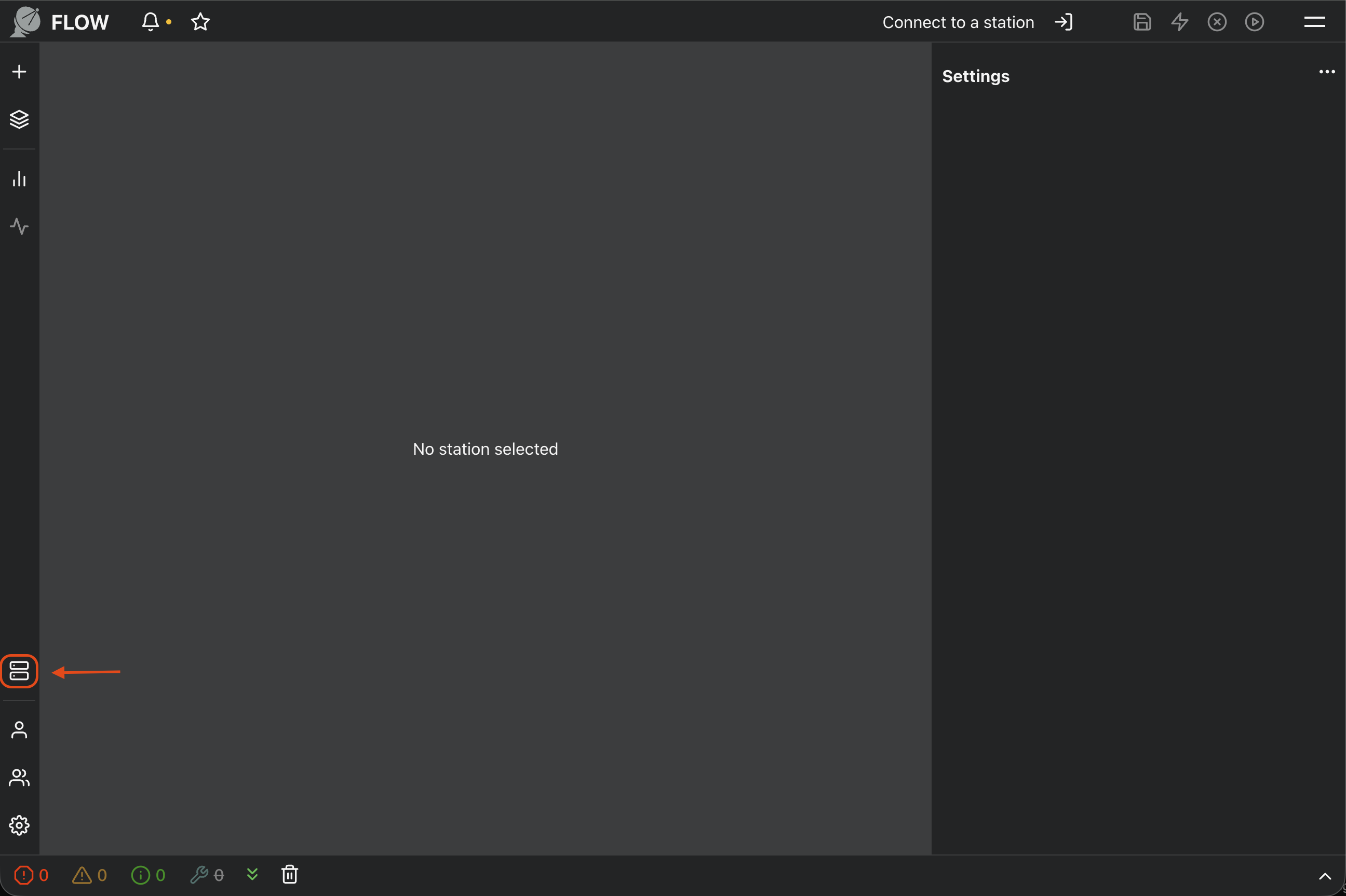
Step 1: Open Station Management
Click the Manage Stations button in the sidebar to open the station management panel.
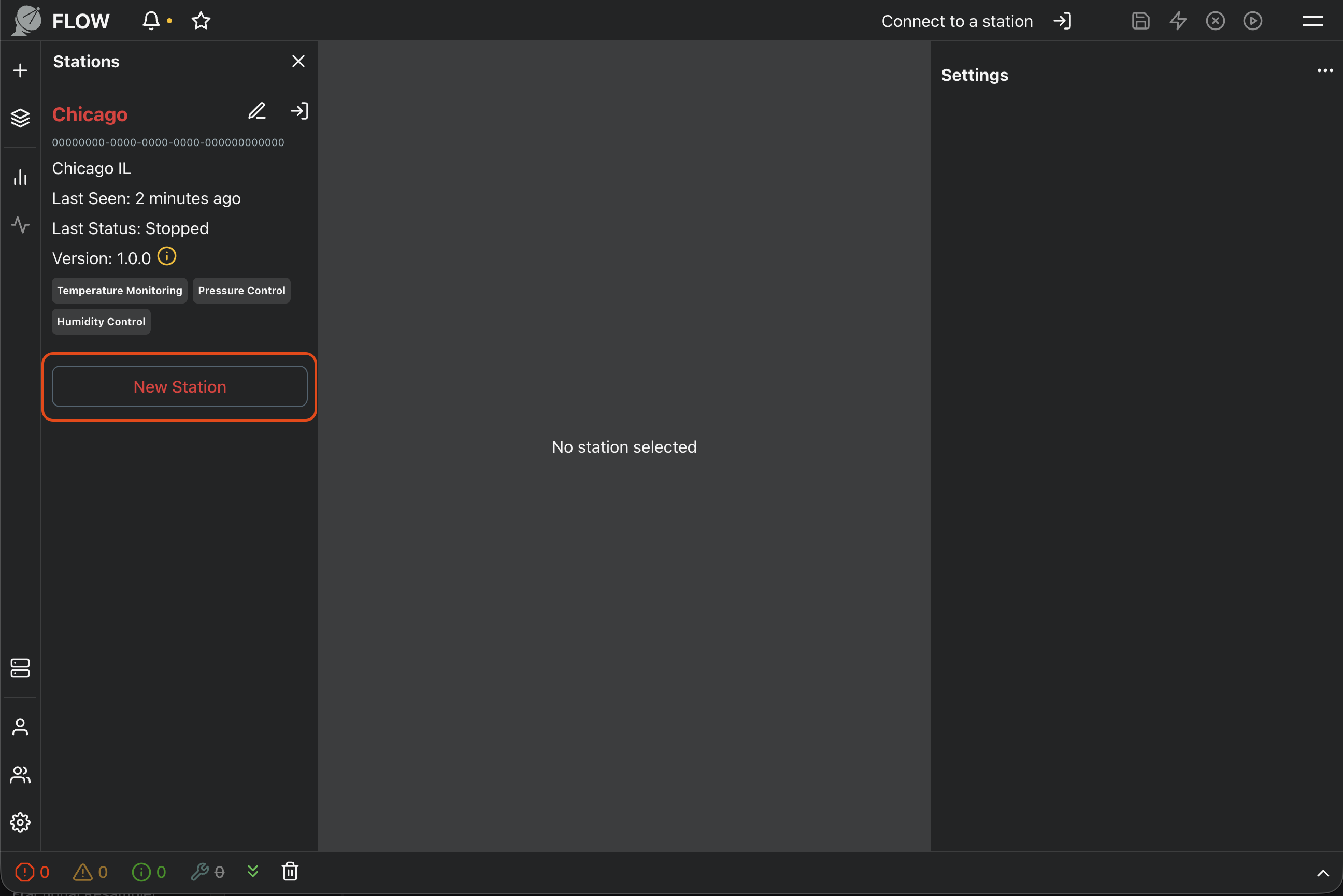
Step 2: Create a New Station
Click the New Station button to begin the station creation process.
Step 3: Configure Station Details
Fill out the station configuration form with the required information:
- Station Name: A descriptive name for your station
- Location: Physical location of the station
- Tags: A comma separated list of tags. Can be which hardware is connected to the station.
- Select License: Select an available license
Once complete, click Next to proceed.
Step 4: Copy the Registration Key
A unique Registration Key will be displayed. Copy this key and store it securely. You will need it when starting the station.
Security Note: The registration key is sensitive and should be treated like a password. Do not share it publicly or commit it to version control. The key is typically single-use and may expire if not used within a certain timeframe.
Step 5: Download the Station Software
Download the station executable for your platform:
| Platform | Download | Notes |
|---|---|---|
| Windows | nsl.exe | May require allowing through Windows Defender |
| Linux | nsl | Run chmod +x nsl to make executable |
| macOS | nsl | Run chmod +x nsl to make executable. May require approval in System Settings > Privacy & Security |
Step 6: Run and Register the Station
Run the downloaded executable from a terminal or command prompt:
Linux / macOS:
bash
./nslWindows:
cmd
nsl.exeWhen prompted, enter the Registration Key you copied in Step 4.
Step 7: Verify Connection
Return to the web interface and click Next. The setup wizard will wait for your station to connect.
Once connected, you will see a green checkmark indicating the station is online and ready.
Post-Installation Verification
After setup, verify your station is healthy:
- Check the station list. Your new station should appear and be ready to connect
- Connect to the station
Running as a Service
To keep your station running after logout or system restart, configure it as a background service.
Linux (systemd)
- Create a service file:
bash
sudo nano /etc/systemd/system/nsl-station.service- Add the following configuration:
ini
[Unit]
Description=NSL Station
After=network.target

[Service]
Type=simple
ExecStart=/path/to/nsl
Restart=on-failure
RestartSec=10
User=your-username

[Install]
WantedBy=multi-user.target- Enable and start the service:
bash
sudo systemctl daemon-reload
sudo systemctl enable nsl-station
sudo systemctl start nsl-station- Check status:
bash
sudo systemctl status nsl-stationWindows
- Open Command Prompt as Administrator
- Create a scheduled task to run at startup:
cmd
schtasks /create /tn "NSL Station" /tr "C:\path\to\nsl.exe" /sc onstart /ru SYSTEMAlternatively, use a service wrapper like NSSM for more control.
macOS (launchd)
- Create a plist file:
bash
nano ~/Library/LaunchAgents/com.nordicspacelink.station.plist- Add the following configuration:
xml
<?xml version="1.0" encoding="UTF-8"?>
<!DOCTYPE plist PUBLIC "-//Apple//DTD PLIST 1.0//EN" "http://www.apple.com/DTDs/PropertyList-1.0.dtd">
<plist version="1.0">
<dict>
    <key>Label</key>
    <string>com.nordicspacelink.station</string>
    <key>ProgramArguments</key>
    <array>
        <string>/path/to/nsl</string>
    </array>
    <key>RunAtLoad</key>
    <true/>
    <key>KeepAlive</key>
    <true/>
</dict>
</plist>- Load the service:
bash
launchctl load ~/Library/LaunchAgents/com.nordicspacelink.station.plistUpdating
The station can be updated from the UI. If you need to manually update the station:
- Stop the running station (or stop the service if running as a service)
- Download the new version from the web interface
- Replace the existing executable with the new one
- Start the station again
The station will automatically reconnect using its existing registration. No need to re-register.
Note: Check the release notes for any breaking changes that may require additional steps.
Uninstalling
To remove a station:
1. Remove from FLOW
- Open Manage Stations in FLOW
- Select the station you want to remove
- Click Edit, click Advanced and then click delete
2. Stop the Station
If running directly:
bash
# Press Ctrl+C in the terminal running the stationIf running as a service:
Linux:
bash
sudo systemctl stop nsl-station
sudo systemctl disable nsl-station
sudo rm /etc/systemd/system/nsl-station.servicemacOS:
bash
launchctl unload ~/Library/LaunchAgents/com.nordicspacelink.station.plist
rm ~/Library/LaunchAgents/com.nordicspacelink.station.plistWindows (if using scheduled task):
cmd
schtasks /delete /tn "NSL Station" /fTroubleshooting
Station doesn't connect
- Check network connectivity: Ensure the station host can reach the internet
- Verify the registration key: Make sure you copied the key correctly without extra spaces
- Check firewall settings: The station needs outbound HTTPS access (port 443)
- Review logs: Check the terminal output where the station is running for error messages
Permission denied (Linux/macOS)
If you see a "permission denied" error:
bash
chmod +x nslmacOS security warning
If macOS blocks the application:
- Open System Settings > Privacy & Security
- Look for a message about the blocked application
- Click Open Anyway
Windows SmartScreen warning
If Windows SmartScreen blocks the application:
- Click More info
- Click Run anyway
Limitations
- You cannot run multiple stations on the same machine